
PS3 Eye Camera Head Tracking Setup with OpenTrack
No CL-Eye driver needed! Follow our guide to enjoy immersive and smooth gaming!

PS3 Eye open driver Installation
This tutorial was created using a modified PS3 Camera which means the camera has an IR filter removed and floppy disk film applied for best IR tracking experience.
If you have unmodified PS3 Camera, the results will not be that good or even completly prevent you form using it.
If you purchased the camera from us, it means you have the modified camera and there is no need to attach any filters on top of the lens.
Step 1: PS3 Eye Camera preparation
- Before anything – please remove any existing PS3 Camera drivers from your PC by following this guide
- Rotate the camera lens anticlockwise to set the correct focus. (this is to zoom out view for better ir tracking)
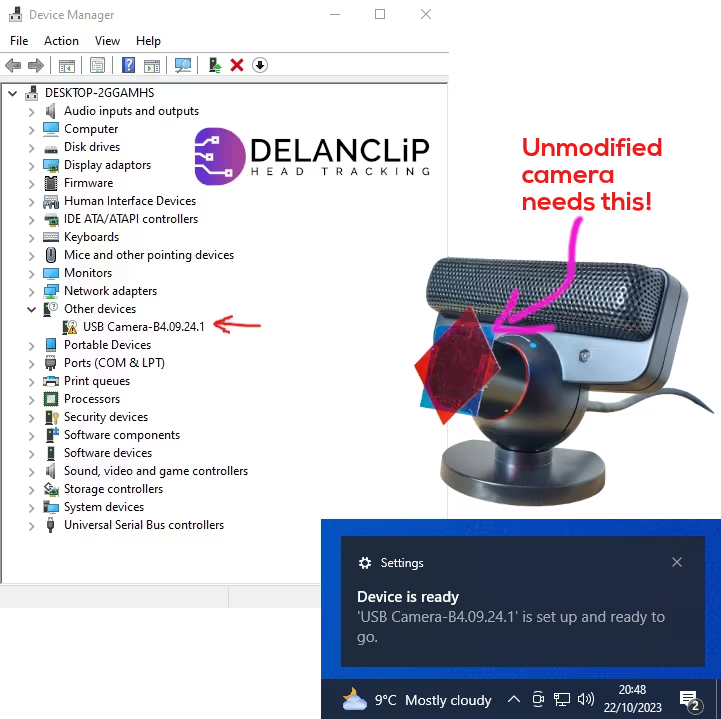
- If you decide to use unmodified camera, make sure you have already fitted the 2 pieces of the transparent coloured film enclosed with the Delanclip on the top of the lens of your camera. Just to give you an idea – In this example we used a very tiny drops of super glue and it did the job perfectly.
- Plug in the camera to a free USB port of your Motherboard. It is best not to use USB hubs as they may lead to issues with driver installation. USB extension cable should be fine inf you need it.
- Wait for the Windows to automatically install new device called “USB Camera-B4.(xxxx)” if you dont see this name in the device list – read this
- Please note, on Windows 11 you will not see the pop up window like on the screenshot.
- Attach the camera to your monitor using PS3 Monitor Clip (or if you dont have it, use a hook and loop also provided in the packgae).
- Verify that the camera is listed in device manager
- open device manager by pressing Windows tiles and start typing: “Device”
- You will see the Device Manager at the top of the window
- The camera should appear in Other devices and identified itself as USB Camera-B4.(xxxx)
- If you dont see this, then you need to uninstall the PS3 camera drivers that manmy times until you see the “USB Camera-B4.(xxxx)” in your device list.

Problems with installing PS3 Eye Camera in your Windows system?
Read our guide about how to troubleshoot PS3 camera driver issues.
Step 2: Install the libusbK Development Kit
- Important! you must see the camera in the device list identified as “USB Camera-B4.09.24.1” with exclamation mark – otherwise you will waste your time going forward.

- Download the UsbK Development Kit
- Now very importatn instalation proceduere, make sure you will do everything exactly as we say here, otherwise it will not work.
- Double click on the downloaded file and press Next button
- On the following screen select “compact installation” from the dropdown list.
- On the next screen check the first 5 boxes as per our screenshot
- Follow with next button and finalize the installation.
- You will immediately see a new window popup. Follow to the next step – number 3

Step 3: The USB Inf Creator / Installer
- Select libusbK from the Kernel Driver Packages and press next
- Now you should see your camera listed in the Device Selection window. If you cannot see it, that mans your USB drivers may be corrupted. You need to make sure that there is no other driver isntalled for PS3 camera in your system.
- Device configuration – just press next, nothing to change here.
- Select “Instal Only” and press next
- Now the driver is installing, be patiend and wait until it finishes its job
- Success! The driver was installed correctly and you can press finish and proceed to Opentrack installation below.



PS3 Camera Head Tracking Setup with OpenTrack
Now is the time to setup your OpenTrack Software utilising the PS3 Camera!

Step 4: Opentrack Installation
- Please note – your opentrack version needs to be at least: 2023.3.0 so please make sure you used the version we provide here to be able to use Open PS3 Driver!
- Download Head Tracking Software and profiles:
- Save these files in any easy accessable folder for you
- Install opentrack (very easy – just follow the installation wizard)
Step 5: Custom Profiles Directory
- Run opentrack software
- Navigate to the profile dropdown menu
- Open configuration directory


Step 6: Adding an INI Profile
- We recommend to use 7zip and double click to open the Profiles Zip file.
- Now you can easily copy by using drag and drop from the downloaded ZIP to the opentrack configuration folder.
- Copy both files if you ever need to use face tracking – profile will be there for you.
Step 7: Selecting Profile
- Go back to the opentrack main window
- Select profile according to your product:
- Delanclip Fusion – USB-C.ini (Latest release of our flagship product)
- Delanclip Fusion – Micro USB.ini (Purchased before 2025)
- Delanclip Starter – Metal Clip.ini (Also found in Gamer edition)
- Excellent! Move to the next point now!

Step 8a: Attaching the Delanclip Starter
- Here is a short video explaining how to attach Delanclip on your Headphones.
- It shows the Delanclip Starter, but the same principal is for the Delanclip Fusion with the difference that you do not bend it.
Step 8b: Attaching the Delanclip Fusion
Delanclip Fusion Pro attachment watch this short video to become a pro. Same principle applies to the Delanclip Starter.
But here’s the secret: the placement shown is just a starting point!
Get creative, experiment with different velcro button positions, and find your own perfect fit for maximum enjoyment.
Final Software Tweaks
All the below operations must be done live while watching the on screen results.
- Turn on Delanclip Fusion (or plug in the USB of the Delanclip Starter) and wear it on your head.
- Press “Start” on the Opentrack main window (step 1 on the screenshot).
- If you experiance issues with error message: “Error occured while loading tracker PointTracker 1.1 Failed to open camera“
- Make sure your Camera is not blocked in Windows – here is how: How to Unlock Camera in Windows
- Point the Delanclip towards the camera, and hit the center button (default to HOME on keyboard)
- On the input (step 2 on the screenshot) – click the small hammer icon to access the options window.
- You should now see a very similar picture as shown in the screenshot.
- Adjust the threshold to fine-tune the points. This step is only required if your tracking points are faded or barely visible.
- You can also adjust the camera focus if your extracted points are faded or not bright enough by turning the lens. PS3 camera is a little tricky as it clicks to a set focus points. You can try to go somwhere in the middle – the lens will stay if you do it correctly – you may get much better results.
- When you reached the stable point tracking then you are redy to move on.
- Leave Opentrack running and start your game.
- You are now able to look around using Delanclip.
- If you wish to center the view, press the “HOME” key.
- Enjoy!


In depth videos
For deeper insights into the mappings and advanced settings, we’ve created a comprehensive video below.
While these settings may not be crucial for beginners, you’re welcome to check it out if you feel like you need more information – watch the video below:
This step is not necessary step but if your camera is out of focus here is what you need to do!
tahts all - enjoy!
You are now ready to play!
The above steps are enough to get you into the head tracking World. There are more advanced settings available in the opentrack software. They allow configuring more than we covered above. We do recommend to go to the advanced settings when you get familiar with the software.
Dont forget to check out our social media below!
There is also available more in-depth manual for setting up OpenTrack with your head tracker on the link below: