Benefits of using DCS Head Tracking with Webcam
How To use DCS Head Tracking with Webcam?

Integration with DCS
Once your webcam and tracking software are ready, integration with DCS is automatic.
The software translates your head movements into in-game view control, creating an immersive, hands-free gaming experience.
Proper calibration ensures smooth, precise movements, enhancing gameplay accuracy and realism.
Basic Principles of Face Tracking
Webcam-based tracking uses facial recognition technology to detect your head movements. The software converts these movements into in-game camera controls, allowing natural and intuitive viewing.
Precise tracking improves cockpit visibility, situational awareness, and responsiveness.
Setting Up DCS Head Tracking with Webcam
Choosing the Right Webcam
Not all webcams are equally effective when it comes to face tracking. For the best experience, choose a model with high resolution, good low-light sensitivity, and a smooth frame rate. Great examples include the Logitech C920 or the Razer Kiyo.
Alternatively, you can opt for our dedicated DelanCam1, specifically designed for both face and IR tracking. It contains everything you need to significantly enhance your gaming setup.
If you’re looking to take your gaming experience even further, pair the DelanCam1 with one of our precise IR emitters, such as the Delanclip Fusion Pro, for exceptional tracking accuracy and no cables attached.
Installing the Software
To enable head tracking, you’ll need software that can process your webcam feed. OpenTrack is a popular and effective option.
Download the latest version of OpenTrack from GitHub
Always select the latest version of OpenTrack, as of today it is 2024.11. Open the panel with Assets which will show a list with available versions.
The easiest solution is to download the setup.exe file. Depending on your Windows version, select whether you have a 64 or 32 bit system. Learn how to check if your Windows is 32-bit or 64-bit
Connecting Your Webcam
Not all webcams are equally effective for head tracking. For the best experience, choose a webcam with high resolution, good low-light performance, and a decent frame rate like Logitech C920 or Razer Kiyo.
You can also use our dedicated DelanCam1 for face tracking, which includes everything you need for an enhanced gaming setup.


Launching and Configuring OpenTrack
After installation, launch OpenTrack and set your webcam as the video source. Adjust the resolution and frame rate settings to match your webcam’s capabilities, ensuring smooth and responsive head tracking.

Calibrating the Head Tracking
Calibration is crucial for accurate head tracking.
To be honest, there is no universal configuration.
The whole process is based on trying and adjusting. It all depends on your preferences and your setup.
The best approach is to play for a while, see how everything works in the game, what bothers you and what you want to change, and then change it to suit yourself.

Adjusting Sensitivity
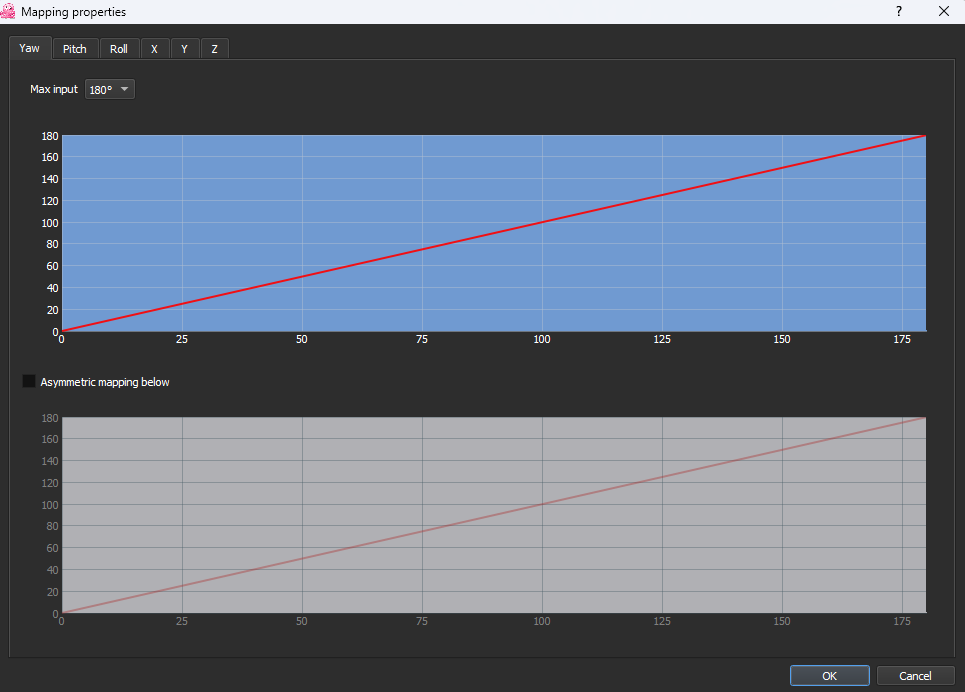
Sensitivity settings determine how responsive your head tracking will be. Higher sensitivity results in quicker camera movements, while lower sensitivity offers smoother, more controlled movements. Adjust these settings to suit your preferences.
The image shows “Mapping Properties”. This setting allows you to fine-tune how your head movements or other inputs are translated into the game or application, making the tracking feel smooth and natural.
Integrating with DCS
Finally, launch DCS and make sure OpenTrack is running in the background (In DCS, head tracking should be enabled by default). This will link your head movements to in-game camera controls, offering a fully immersive experience.

Troubleshooting Common Issues
Poor Tracking Accuracy
Adequate lighting is also essential for accurate tracking.
Lag or Latency
Inconsistent Tracking

Tips for maximising your gaming experience in DCS head tracking with webcam
Optimise Camera Placement
Regular System Maintenance
Update DCS

DelanClip IR Tracking vs Webcam Face Tracking
Accuracy
Cost
Performance
Setup
IR tracking is more stable and responsive, which is especially important in applications like flight simulations and racing games where precise head movements are crucial.
Head tracking technology offers a range of solutions to fit different needs and budgets. IR-based systems like DelanClip provide a balance between performance and affordability, while webcam-based options offer an accessible entry point with less hardware but lower precision.
Don't take our word for it.
Check the reviews!
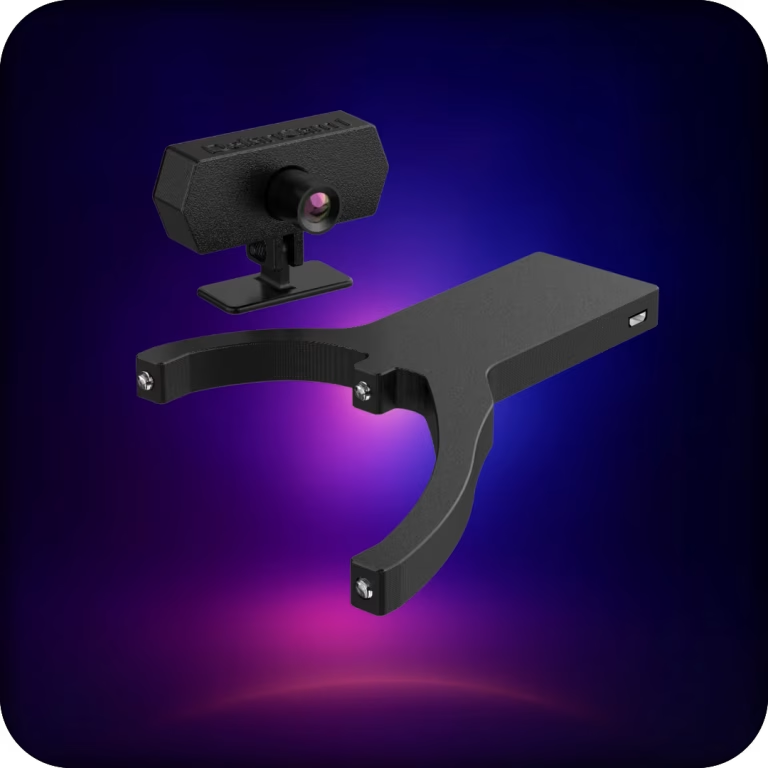
Wireless PC head tracking built for demanding gamers.
Delanclip Fusion Pro delivers premium, low-latency wireless tracking with universal PC sim compatibility.
It’s the best-value head tracker you can buy, pairing pinpoint precision with a clean, modern design for pro-grade performance without the pro-grade price.
- Cable-free experience, wireless head tracker
- Super precise Ir tracking, perfect for nighttime and daytime players.
- Windows and Linux compatible!
- Plug and play, no drivers needed.
- 2 year warranty
Original price was: £125.00.£107.99Current price is: £107.99.

Delivery:
UK: 1-3 days, £5.99
USA: 3-12 days, £19.99
EU: 3-12 days, £13.99
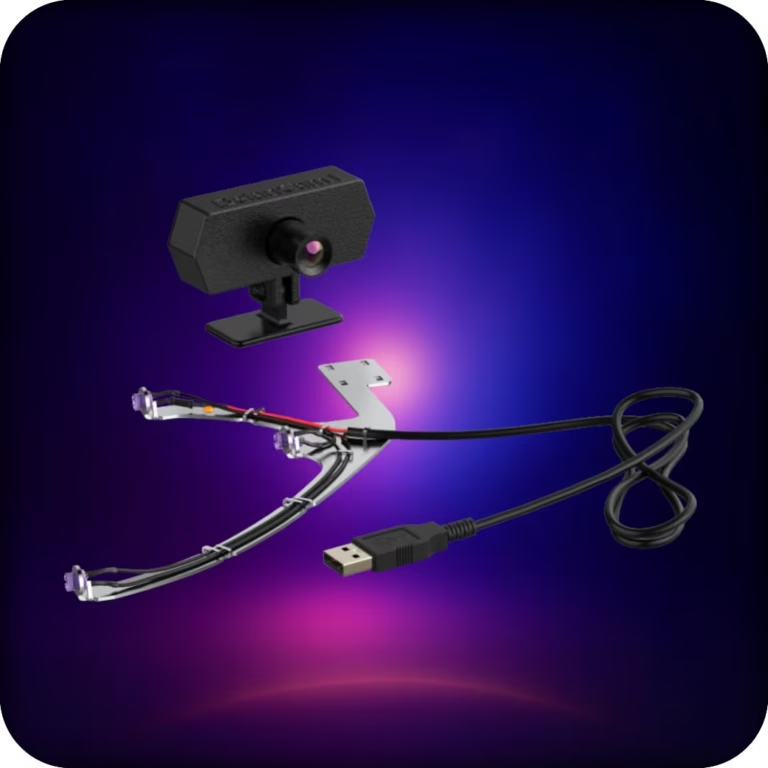
A reliable, affordable, all-in-one head-tracking setup. Plug in, clip on, and jump straight into ultra-precise IR tracking across your favorite PC sims.
This bundle uses our corded emitter and delivers the same tracking performance as Delanclip Fusion, just with a cable. Perfect for gamers who want pro-level precision and immersion without breaking the bank.
- Corded Design
- Super precise Ir tracking
- Perfect for nighttime and daytime players.
- Windows and Linux compatibile!
- Plug and play, no drivers needed.
- 2 year warranty!
Original price was: £99.99.£71.99Current price is: £71.99.
Delivery:
UK: 1-3 days, £5.99
USA: 3-12 days, £19.99
EU: 3-12 days, £13.99
Resources for Further Learning and Support
OpenTrack GitHub Page
YouTube Tutorials
FAQ
Can I use my webcam for head tracking?
Yes, you can use your webcam for head tracking by leveraging software like OpenTrack, which converts your head movements detected by the webcam into in-game camera movements. This method is cost-effective and works well with DCS and other similar games.
How to use a webcam for face tracking?
To use a webcam for face tracking, you’ll need to install software like OpenTrack that processes your webcam feed. After installing and configuring the software, the webcam will detect your head movements, and these will be translated into corresponding actions within your game.
Can OpenTrack use a webcam?
Yes, OpenTrack can use a webcam to track your head movements. By configuring OpenTrack with your webcam as the video input, the software will track your facial movements and translate them into in-game controls for an enhanced gaming experience.