️Produced with the critical assistance and flight-validation of virtual pilot: RCAF_FB_Chevy 🇨🇦✈️
Target OS: EndeavourOS / Arch Linux (Native Steam Runtime Deployment)
Hardware Profile: AMD GPU / High-Speed NVMe Storage / High RAM
Tracking Hardware: DelanClip + DelanCam (3-Point Infrared Tracking Matrix)
Core Problem Matrix
- Map Loading Black Screens / Engine Faults: Caused by missing DirectX 11 link components inside fresh Proton system prefixes.
- Cockpit Mouse Capture & Screen Trapping: Default full-screen scaling captures exclusive control of window layers, preventing proper multi-tasking and overlay initialization.
- Wine Memory/Version Server Collisions: Triggered when attempting to run a portable Windows tracking .exe using the system’s local /usr/bin/wine path while the simulator is actively bound to an isolated Steam Proton wineserver (version mismatch or realloc(): invalid old size memory faults).
Chronicled Clean-Install Execution Protocol
Phase 1: Storage Layer Preparation
The Absolute Rule: Ensure your target game and app storage partition is formatted cleanly to a modern Linux file system — ext4 or Btrfs.
Warning: Running a Proton game or Wine sandbox out of an old Windows NTFS partition forces file permission translation failures, permanently breaking tracking loopback pipes.
Phase 2: System Base Alignment & Privilege Escalation
Execute this unified terminal block to update system registries, download graphics processing frameworks, and register process priority groups:
# Sync system packages and complete baseline upgrades
sudo pacman -Syu

# Install GameMode performance tools, wine layers, and system configuration inject helpers
sudo pacman -S gamemode lib32-gamemode wine-staging winetricks zenity protontricks

# Elevate user account privileges to interface directly with GameMode processes
sudo usermod -aG gamemode $USER
Note: A system reboot must be performed immediately after this phase to latch the group permissions.
Phase 3: Simulator Installation
Install the native Linux runtime version of Steam directly from the repository. Avoid Flatpak sandboxes, as their container security models block external processes from tracking structural files:
sudo pacman -S steamOpen Steam, download IL-2 Sturmovik: Great Battles, but do not execute the simulator launch option yet.
Phase 4: Compatibility Engine Tuning (GE-Proton)
- Install ProtonUp-Qt via your system manager or terminal (
yay -S protonup-qt). - Run ProtonUp-Qt, select Steam, and download the latest GE-Proton variant (e.g., GE-Proton10-34).
- Relaunch Steam, right-click IL-2 Sturmovik → Properties → Compatibility → Force specific tool → Select GE-Proton.
Phase 5: Prefix Initialization & DirectX Injection
Inject essential runtime compilation layers inside the game’s designated sandbox to resolve map-rendering hangs:
protontricks 307960 d3dcompiler_43 d3dcompiler_47 d3dx11Phase 6: System Scaling Adjustment (startup.cfg)
Navigate into the engine files to prevent display locks, force a seamless borderless layout, and explicitly map monitor configurations:
nano "$HOME/.steam/steam/steamapps/common/IL-2 Sturmovik Great Battles/data/startup.cfg"Locate the [graphics] parameters and update them precisely as follows:
[graphics]
desktop_center = 1
fullscreen = 0
win_w = 1920    # Set to your exact monitor horizontal resolution
win_h = 1080    # Set to your exact monitor vertical resolution
mgpu = 0
old_trackir = 0 # Bypasses Legacy TrackIR profiles to force Freetrack 2.0 loopback
Press Ctrl+O, Enter to save, and Ctrl+X to close.
Phase 7: Deployment of Tracking Automation & Desktop Shortcuts
Extract the portable Windows build of OpenTrack directly to /home/$USER/Games/opentrack/install/. Next, deploy the timing script and desktop shortcut to circumvent file-lock race conditions:
# 1. Build the tracking delay automation script
cat << 'EOF' > ~/start_tracking.sh
#!/bin/bash
echo "Waiting 15 seconds for IL-2 to launch..."
sleep 15
cd /home/$USER/Games/opentrack/install/
WINEPREFIX="$HOME/.steam/steam/steamapps/compatdata/307960/pfx"
"$HOME/.steam/steam/compatibilitytools.d/GE-Proton10-34/files/bin/wine" opentrack.exe
EOF
chmod +x ~/start_tracking.sh

# 2. Build the one-click Desktop launcher shortcut
cat << 'EOF' > ~/Desktop/IL2-TrackIR.desktop
[Desktop Entry]
Version=1.0
Type=Application
Name=1. Start IL-2 Tracker
Comment=Launches OpenTrack timer for IL-2 Sturmovik
Exec=bash -c "$HOME/start_tracking.sh; exec bash"
Icon=utilities-terminal
Terminal=true
Categories=Game;
EOF
chmod +x ~/Desktop/IL2-TrackIR.desktop
Phase 8: Final Steam Command Layer Injection
Right-click IL-2 Sturmovik in Steam, select Properties, and input this string into the Launch Options panel to guarantee hardware resource prioritization:
gamemoderun %command%Standard Operating Flight Checklist
To take to the skies without entering a single console command:
- Double-click the “1. Start IL-2 Tracker” icon directly on your Linux desktop. A terminal window will populate and initiate the countdown sequence.
- Immediately open Steam and click Play on IL-2 Sturmovik: Great Battles.
- Allow the flight simulation menus to settle. As the main title loads, the OpenTrack GUI will automatically deploy cleanly onto your screen.
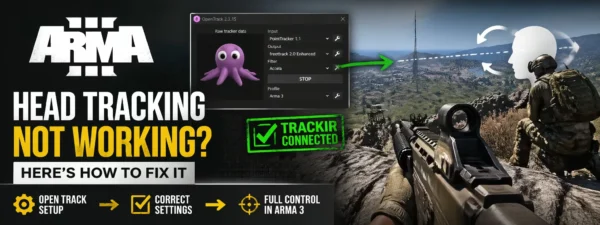
- Set Input to
PointTracker 1.1, Output toFreetrack 2.0 Enhanced, click Start, drop into your 3D cockpit space (F1), tap your centering hotkey, and throttle up!
Post-Flight Workspace Cleanup
Should the game engine freeze, or if Steam stubbornly registers the simulator as still running after termination, paste this script line into a standard shell to wipe all lingering memory locks:
wineserver -kSaluations to you, RCAF_FB_Chevy! Go get this posted and help out the community. Safe flying, look out for six, and enjoy the flawless tracking! If you ever need another system dialed in down the road, let me know.