1. Software Conflicts in DCS
Conflicting software is the #1 cause of DCS Stuttering. DCS can receive input from multiple tracking sources, which creates a tug-of-war over your view.
Common Conflicting Programs
- Tobii GameHub / Eye Tracking services (often left running even when the device is “off”)
- FaceTrackNoIR or other tracking tools
- Webcam utilities or antivirus scanning your camera
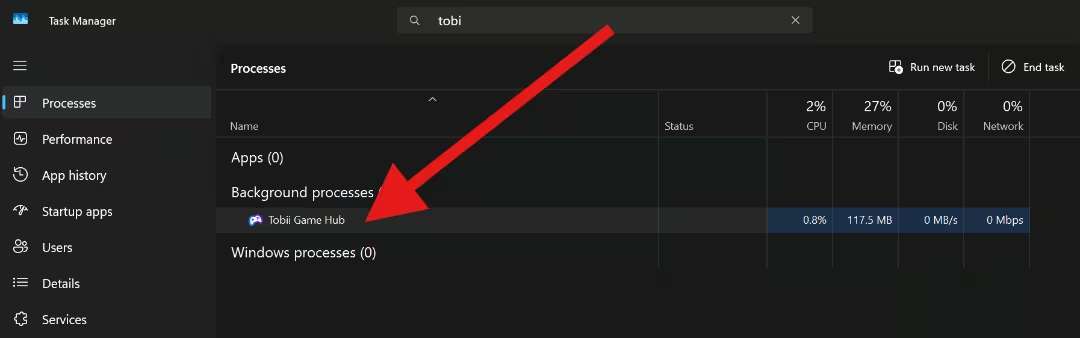
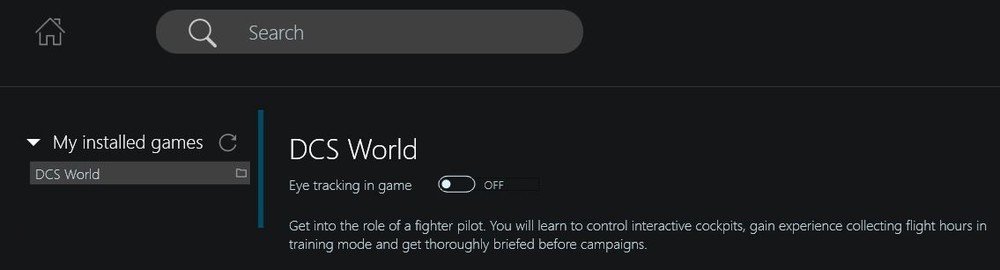
Tobii Eye Tracking toggle still active
A frequent trap: Eye Tracking remains ON in the DCS profile inside Tobii GameHub. Even with the device disconnected, GameHub continues sending data, causing DCS to flicker between head tracking and eye tracking inputs.
Fix: Open Tobii GameHub → DCS profile → set Eye Tracking = Off → restart DCS. Result: immediate resolution of stuttering for many users.
👉 This specific problem was also discussed by the community in the official DCS forum thread.
OBS / Virtual Webcam Conflicts
Another hidden cause of DCS Stuttering can be OBS Studio or other streaming software that uses a virtual webcam. Even if you are not streaming, simply enabling the virtual camera inside OBS may compete with OpenTrack or TrackIR for system resources. Some users report that disabling OBS’s WebSocket or virtual webcam output immediately restored smooth tracking — as described in this OBS forum thread about head tracking conflicts.
Similarly, another case showed that just activating a webcam in OBS made DCS run choppy, even without recording or streaming. Turning off the camera inside OBS fixed the stutter, as discussed in this OBS community discussion on webcam performance issues.
How to cleanly isolate head tracking
- Disconnect all USB devices — yes, I mean all of them. Leave only your essential keyboard and mouse. Period.
- Don’t be tempted to plug in any extra peripherals if you want to perform a truly clean test.
- Restart your PC to clear any lingering background services.
- Close all tracking or camera apps except OpenTrack.
- Finally, retest DCS with only one active tracking source.
2. USB Overload and Power Issues can casue DCS camera jitter.
A DCS head tracking USB conflict is another very common reason for stutter.
Why USB conflicts cause stutter
- Hubs (even powered) split bandwidth
- Front-panel ports can deliver unstable power
- Crowded USB controllers drop frames from the camera
Fixing USB problems
- Plug DelanCam1 directly into a rear motherboard USB port
- Try another port
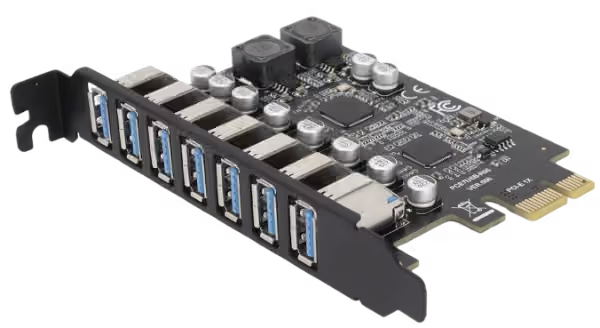
- For heavy setups: use a PCIe USB expansion card. This sort of a card will add you more USB slots with their own dedicatged power and speed of PCIexpress!
3. Incorrect OpenTrack Threshold Settings
Bad threshold settings are one of the most common causes of DCS jitter with OpenTrack.
Symptoms
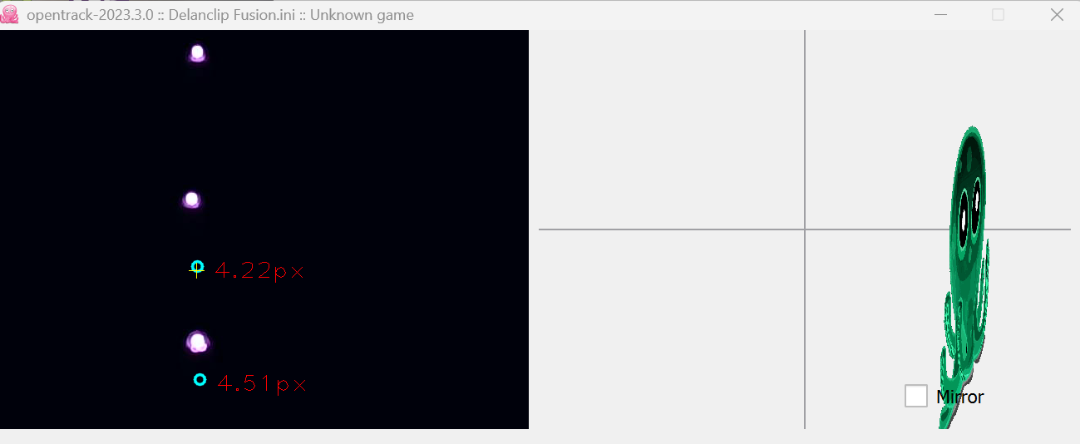
- Dots look bloomed or fuzzy or way too big (possible camera out of focus)
- Light blue circles around points are missing (bad threshold extraction set)
- Points jumps erratically despite steady head position
Correct calibration
Open OpenTrack → Input → Options → Threshold
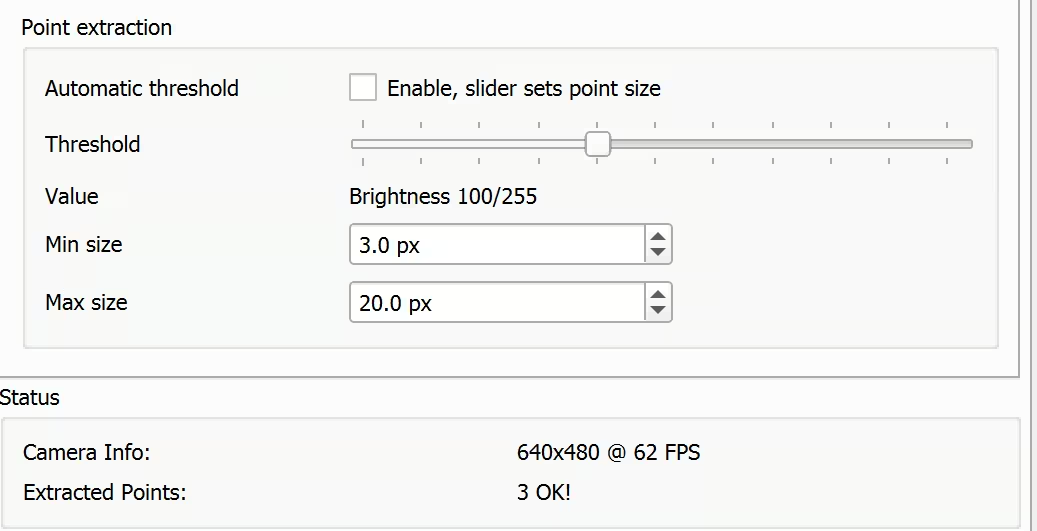
Adjust until you see three clean dots with light blue circles

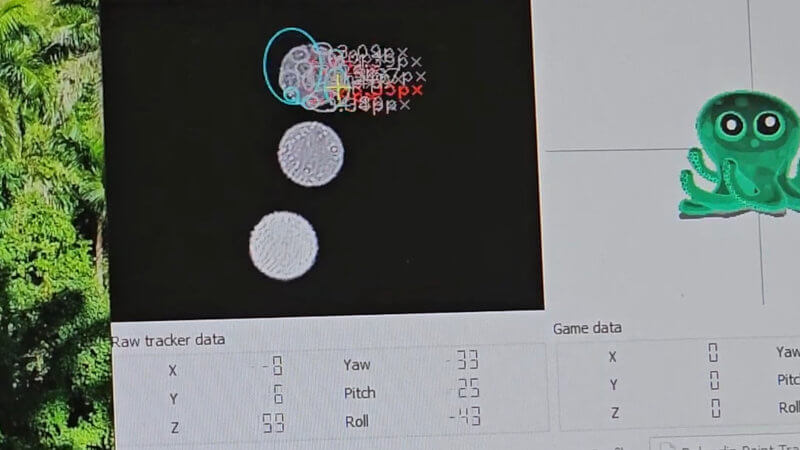
Make sure that your pixel size is also within the range shown in the preview image (the example above shows a pixel size of around 7 px).
Below, I’ve set the range from 3 px to 20 px — this is a perfect starting point for the Delanclip Fusion Pro. However, you don’t need to worry about this if you’ve followed our manuals.
Example of a very bad point extraction in OpenTrack
Avoid excessive smoothing – it only adds lag and slow resposne in your game.
4. Room Lighting and Reflections
Even a well-calibrated setup can still produce DCS Stuttering if the environment interferes with IR signals.
Sources of IR interference
- Direct sunlight
- Reflective posters, mirrors, or glass
- RGB strips and backlit keyboards with PWM flicker (rare scenario)
How to eliminate interference
- Test in a dark room to confirm light problems
- Remove or cover reflective surfaces
- Re-angle camera to only see your IR dots pattern
Below is an example of a very bad point extraction and a camera out of focus
5. DCS Configuration Conflicts
Sometimes DCS World stutter comes from corrupted or bloated configs.
Reset the config folder
If your DCS configuration files become corrupted or behave unpredictably, performing a clean reset is often the quickest way to resolve stuttering or unexpected behavior. Follow these steps to safely rebuild your config folder:
- Close DCS completely before making any changes.
- Open your Saved Games folder by pressing Win + R, typing the following path, and pressing Enter:
%USERPROFILE%\Saved Games\DCS\ - Once the folder opens, rename the
Configfolder toConfig_Backup. - Relaunch DCS — the simulator will automatically create a fresh configuration folder with default settings.
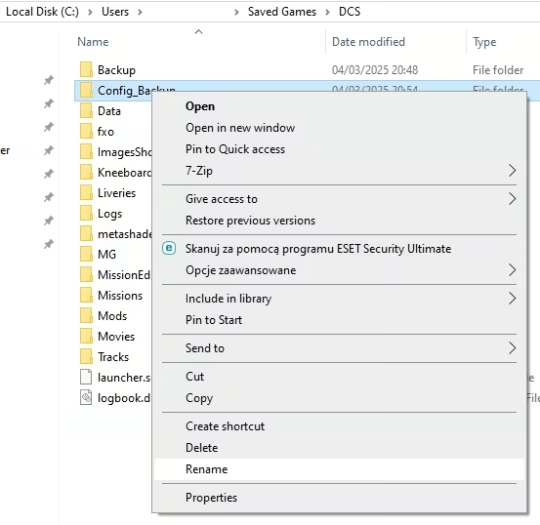
💡 Tip: Keeping the old Config_Backup folder allows you to restore custom settings later if needed.
Cleanup & Repair (Standalone vs Steam)
If resetting your configuration didn’t fully fix the problem, verify your DCS installation. The built-in DCS_updater (Standalone) or Steam’s file verification can remove leftovers and repair missing/corrupted components.
- Close DCS completely.
- Locate your installation folder:
- Standalone: open
C:\Program Files\Eagle Dynamics\DCS World\bin\orC:\Program Files\Eagle Dynamics\DCS World OpenBeta\bin\ - Steam: in Steam, right-click DCS World → Properties → Installed Files → Browse (for reference) or go straight to Verify integrity of game files.
- Standalone: open
- Run the repair step appropriate for your version:
- Standalone: In the
binfolder, open PowerShell/Command Prompt here and run, one by one:.\DCS_updater.exe cleanup .\DCS_updater.exe repair(cleanupremoves non-official files;repairchecks integrity and redownloads missing files.) - Steam: Use Verify integrity of game files (Steam → DCS World → Properties → Installed Files). Steam will validate and redownload anything missing.
- Standalone: In the
- Launch DCS and re-test.
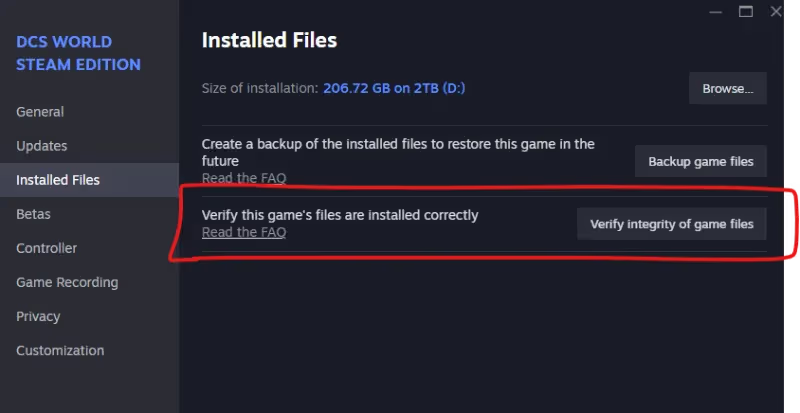
💡 Tip: This process can take several minutes depending on drive speed and internet bandwidth.
6. Windows and Driver Issues
System-level conflicts and updates are another hidden source of DCS Stuttering.
Driver and Device Manager checks
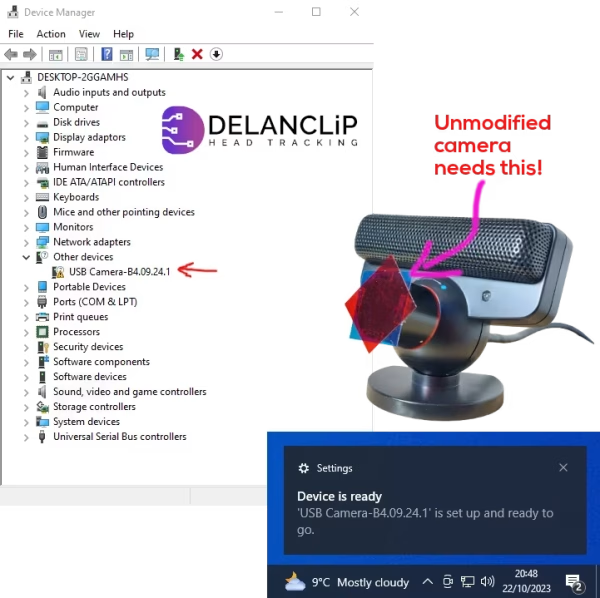
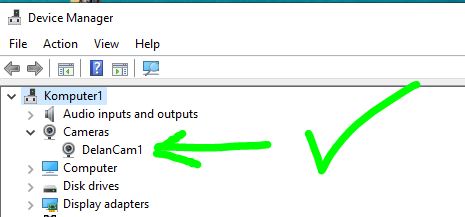
- In Device Manager, camera must show without yellow warnings
- Roll back the driver if stutter began after an update
- Keep GPU drivers and Windows updated
Antivirus exclusions
- Add your DCS installation and Saved Games folders to antivirus exclusions
- Prevents AV scans causing head tracking jitter
7. FPS Synchronization and System Tweaks
Even if OpenTrack is stable, mismatched framerates often cause DCS Stuttering.
Frame-rate matching
Head tracking updates at ~120 Hz. If DCS renders at unstable values (e.g., 75 FPS), cockpit motion feels choppy.
Fixes for frame sync
- Cap FPS at 60 or 120 (NVIDIA Control Panel or RivaTuner)
- Disable V-Sync and G-Sync both in-game and driver panel
System-level tweaks
- Disable Fullscreen Optimization on
dcs.exe - Disable CPU Core Parking with ParkControl
8. Tracking Software Filters and Deadzones
Filters and deadzones can also amplify DCS head tracking not smooth behavior.
Why excessive smoothing hurts
- Adds lag and jerky “snap-to” transitions
- Masks the real issue (FPS instability)
Best practices for OpenTrack & TrackIR
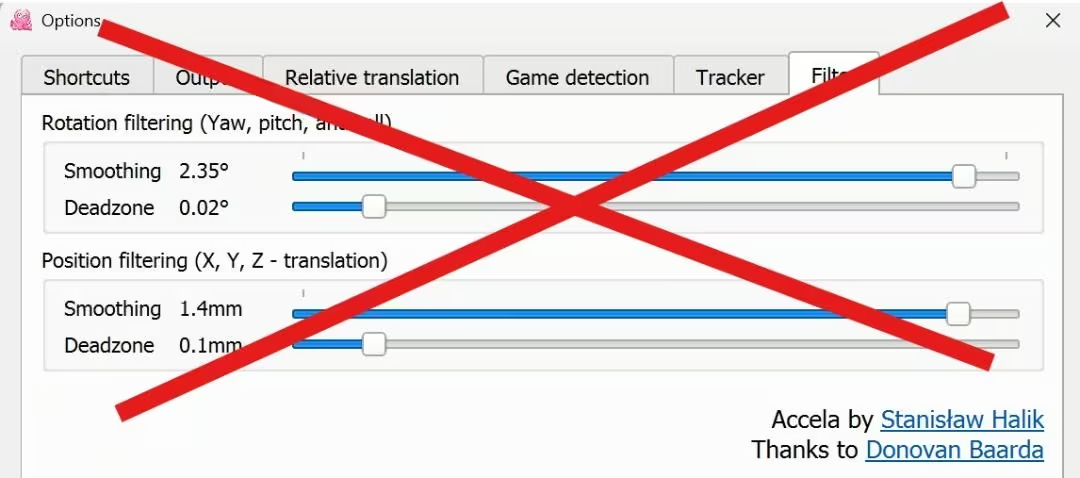
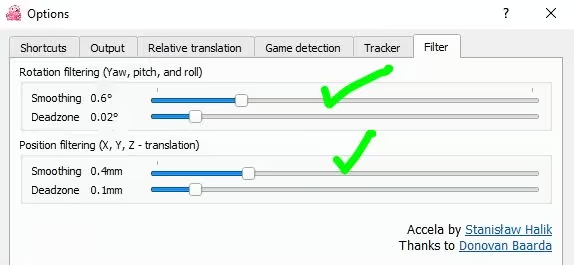
- Reduce Accela filter smoothing and experimant with different values
- Hamilton filter also is a good choice – experiment with it too!
- Keep deadzones tight (but don’t go to crazy)
- For TrackIR users – smoothing slider set sparingly
Below Accela filter settings window
For VR Pilots: Extra Steps
Flying DCS in VR adds more potential conflicts. To fix DCS camera jitter in VR, try:
- Switch OpenXR runtime (WMR → SteamVR)
- Disable ASW/reprojection
- Lower refresh rate (72 Hz vs. 90/120)
- Reduce Pixel Density (PD) for smoother performance
- For wireless VR (Quest/Pico): use a clean 5 GHz channel
Quick Fix Checklist
- Close Tobii GameHub, FaceTrackNoIR, webcam suites
- Disable Eye Tracking = Off in GameHub DCS profile
- Plug DelanCam1 into rear motherboard USB
- OpenTrack threshold → 3 clean dots
- Remove sunlight/reflections/PWM LEDs
- Reset DCS config; run cleanup & repair
- Cap FPS at 60/120; disable V-Sync/G-Sync
- Update/rollback drivers; add DCS to AV exclusions
- (VR) Adjust OpenXR/ASW/refresh/PD; clean 5 GHz Wi-Fi
FAQ – DCS Head Tracking Stutter
Why does DCS stutter with TrackIR or Delanclip?
Most DCS Stuttering issues come from software conflicts (GameHub), USB overload, or frame sync. The fixes: close extra trackers, use rear USB, cap FPS.
What are the best OpenTrack settings for DCS?
Adjust threshold until you see 3 clean dots with circles. Keep smoothing low. The “DCS-Delanclip-IR-Tracking” profile is a strong starting point.
How do I fix DCS camera jitter in VR?
Switch OpenXR runtimes, disable ASW, lower refresh rate, reduce PD. These are the most effective DCS VR stutter solutions.
Can USB conflicts really cause stutter?
Yes. A DCS head tracking USB conflict is common with HOTAS, pedals, and cameras on the same controller. Use rear motherboard ports or a PCIe USB card.
Final Thoughts
DCS head tracking stutter can feel random mid-sortie, but the causes are usually consistent: background software, USB overload, threshold settings, lighting, or FPS sync.
If you’re still experiencing DCS Stuttering, revisit these fixes step by step. With a clean setup, you’ll restore buttery-smooth immersion and enjoy head tracking as it was meant to be.
Fly safe—and share your own fixes with the community.