
Delanclip Pro Series Manual
Let's start the journey into the endless universe!
with Precise Point Tracking model

IR Head Tracking
Precise IR Tracker Setup Guide
Everything you need to know about Head Tracking Setup to get you started with your favorite game!
Please klindly note, human eyes are unable to see IR light, so if you turn on your Delanclip and you think it's not working - then simply follow our manual below!
Step 1: DelanCam1 Installation
- We pre-set the camera focus to be correct, but if you twisted the lens accidentally then you may need to fine tune it. The lens is rotatable.
- Plug the camera directly into a free USB port on your PC motherboard. Do not use USB hubs or extension cables, as they are a very common source of connection and compatibility issues.
- Wait for the Windows to automatically install the drivers.
- Attach the camera using our bespoke made DelanCam1 Monitor Clip.
- That’s all with the camera! Lets configure your Opentrack!

Step 2: Opentrack Software Installation
- Download Head Tracking Software and profiles:
- Save these files in any easy accessable folder for you
- Install opentrack (very easy – just follow the installation wizard)


Step 3: Custom profiles directory
- Run opentrack software
- Navigate to the profile dropdown menu
- Open configuration directory
Step 4: Adding an INI profile
- We recommend to use 7zip and double click to open the Profiles Zip file.
- Now you can easily copy by using drag and drop from the downloaded ZIP to the opentrack configuration folder.
- Copy all files if you ever need to use them, they will be there for you!


Step 5: Selecting Profile
- Go back to the opentrack main window
- Select profile according to your product:
- Delanclip Fusion – USB-C.ini (Latest release of our flagship product)
- Delanclip Fusion – Micro USB.ini (Purchased before 2025)
- Delanclip Starter – Metal Clip.ini (Also found in Gamer edition)
- Excellent! Move to the next point now!
Step 6a: Attaching the Delanclip Starter
Attach your Delanclip Starter!
Watch this short video guide. For instructions on the Delanclip Fusion, see the video below.
Step 6b: Attaching the Delanclip Fusion
Delanclip Fusion Pro attachment watch this short video to become a pro.
But here’s the secret: the placement shown is just a starting point!
Get creative, experiment with different velcro button positions, and find your own perfect fit for maximum enjoyment.
Step 7: Software Tweaks
All the following steps must be performed live while monitoring the on-screen results.
Power On the Device
Turn on the Delanclip Fusion (or plug in the USB cable for the Delanclip Starter) and wear it on your head.
Start Opentrack
Click “Start” in the Opentrack main window.
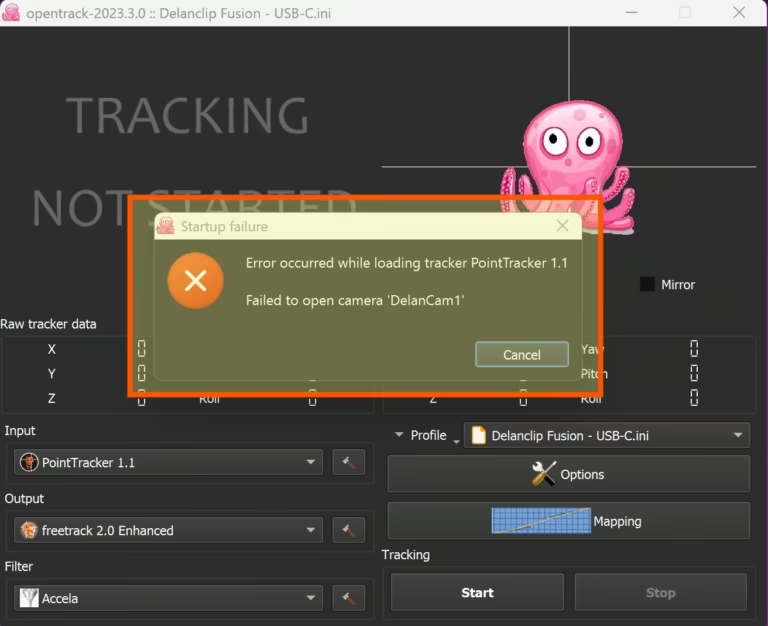
If you see error: “Filed to open camera“, scroll down to troubleshooting camera errors – we have the solution explained.

Aligning the Delanclip
Point the Delanclip towards the camera and press the center button (default is the HOME key on your keyboard).
Adjusting Input Settings
In the input settings (Step 2 in the screenshot), click the small hammer icon to open the options window.
Checking Visibility of Tracking Points
- You should now see an image similar to the one in the screenshot.
- Adjust the threshold to fine-tune the points. This is necessary if your tracking points appear faded or barely visible.
If the extracted points are not bright enough, slightly adjust the camera focus by rotating the lens. We have a video how to fine tune the focus – see below last video.
Ensuring Stable Tracking
Once the tracking points are stable, you are ready to proceed.
Launching Your Game
Keep Opentrack running with active tracking and only then start your game.
Using Head Tracking
You can now look around in-game using the Delanclip. If you need to re-center your view, press the HOME key.
Enjoy Your Experience!
You’re all set! Have fun with smooth and immersive head tracking. 🚀
Step 8: Charging Delanclip Fusion (correctly)
This video shows the correct charging method for Delanclip Fusion and how to verify that the unit is working properly.
Please pay close attention — incorrect charging is the most common cause of “dead” Fusion reports.
Key points covered in the video:
-
Use a standard USB-A → USB-C cable
USB-C → USB-C cables often do not work with Fusion. -
Use a basic 5V USB wall charger
Fast chargers, Apple USB-C bricks, laptop chargers, docks, and hubs may fail to charge the device. -
Charging LED behaviour
A blue LED confirms that Fusion is charging correctly. -
Powering on & IR emission check
The video shows how to verify that the IR LEDs turn on when the device is switched on. -
Testing different cables and chargers
If Fusion does not charge, the video demonstrates how to quickly rule out incompatible cables or power sources. -
Important
If Fusion charges and the IR LEDs turn on as shown, the device is working correctly.
Any tracking issues after this point are usually software or camera related, not a hardware fault.
Troubleshooting Camera Errors
If you encounter the error message:
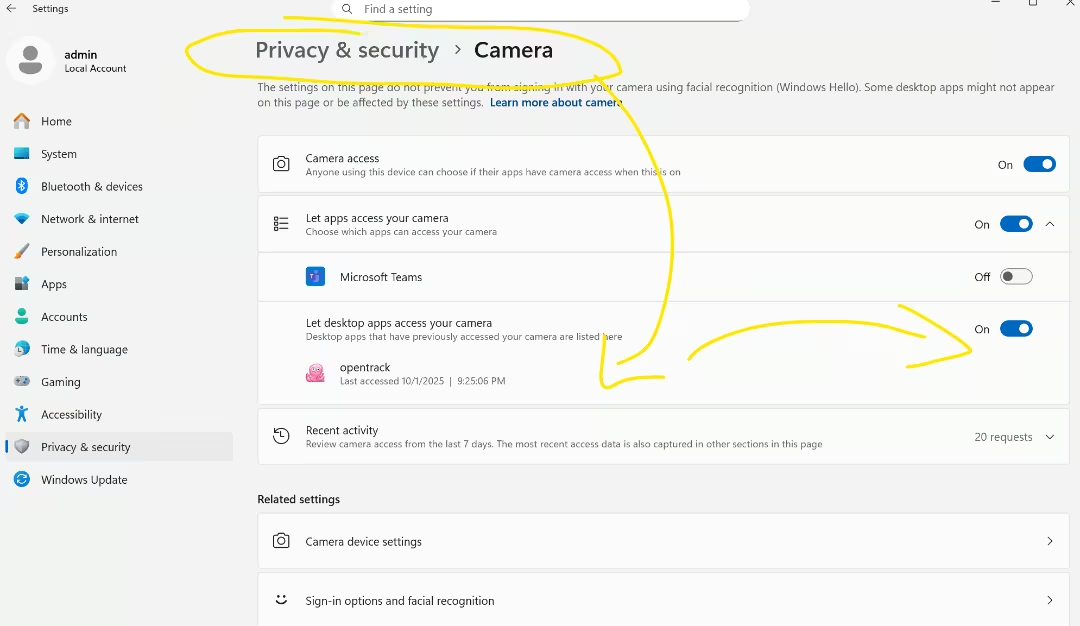
“Error occurred while loading tracker PointTracker 1.1 – Failed to open camera“, ensure that your DelanCam1 is not blocked in Windows.
Press the Windows key → go to Settings → Privacy & security → scroll down to find Camera.
Below is an example how your camera security settings should be looking:
-
Advanced Users Settings
All the below operations must be done live while watching the on screen results.
How to fine tune movements translation (sensitivity) mappings and calibration!
This step is not critically essential but worth watching to better understand how you can increase the sensitivity (travel) of the head movements.
Troubleshooting camera out of focus
All the operations must be done live while watching the on screen results.
Our cameras comes with correctly set focus but if you accidentally twisted the lens you may need to redo the focus calibration as per our video.
We show how to fine tune the focus of the camera to get back to default settings.


that's all - enjoy!
You are now ready to play!
The above seven steps are enough to get you into the head tracking World. There are more advanced settings available in the opentrack software. They allow configuring more than we covered above. We do recommend to go to the advanced settings when you get familiar with the software.
Dont forget to check out our social media below!