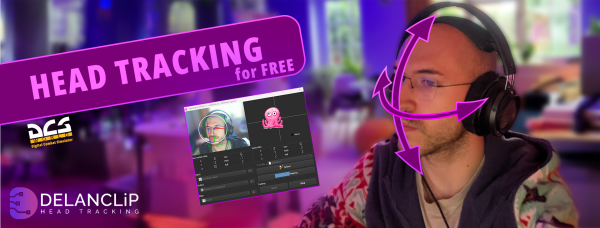
You’ve got your head tracker set up, OpenTrack is running, the little pink octopus is moving on screen — and yet the moment you load into Arma 3, nothing happens. The camera stays completely still, no matter how much you move your head.
If that sounds familiar, you’re not alone. Arma 3 head tracking issues are one of the most common frustrations we hear about from Delanclip users, and the good news is: the hardware is almost never the problem. In the vast majority of cases, it comes down to a combination of software settings and the order you launch things in.
This guide walks you through every step, in the exact order that works — including the two hidden culprits that catch even experienced sim players completely off guard.
First: Confirm Your Hardware Is Working
Before touching any Arma 3 settings, you need to be 100% sure the tracker itself is doing its job. Open OpenTrack, click Start, and physically move your head. The 3D head model (or the pink octopus, depending on your OpenTrack version) should move smoothly in response.
If it does — great. Your hardware is fine, and this is purely a configuration issue. If it doesn’t move at all, the problem is upstream: check your camera connection, IR emitter power, and whether you’re using the correct input plugin (more on that shortly).
Everything that follows assumes your tracker is working correctly in OpenTrack. If the hardware is confirmed good, let’s go fix Arma 3.
The Most Common Reason Arma 3 Ignores Head Tracking
Arma 3 uses the TrackIR protocol to receive head tracking data. The problem is that OpenTrack can output multiple protocols at the same time — and when both TrackIR and FreeTrack are active simultaneously, Arma 3 gets confused and ignores both of them.
This is the single most common reason head tracking appears to do absolutely nothing in Arma 3, even when everything looks correct on the OpenTrack side.
How to Fix the Output Protocol
- In OpenTrack, click the settings icon next to the Output dropdown (it looks like a small wrench or gear).
- This opens the freetrack protocol settings window.
- Under Select interface, change the dropdown to “Use TrackIR, disable freetrack”.
- Click OK and close the settings window.
That single change resolves the issue for a large number of players. Arma 3 now has only one protocol to listen to, and it knows exactly what to do with it.
Launch Order Matters — A Lot
Here’s something Arma 3 does differently from many other games: it only checks for a TrackIR device at the moment the game starts. If OpenTrack isn’t already running when Arma 3 launches, the game won’t find it — and no amount of in-game settings changes will fix that without a full restart.
The correct launch order, every single time, is:
- Start OpenTrack
- Click Start in OpenTrack and confirm the head model is moving
- Only then launch Arma 3
If you launched Arma 3 first and then started OpenTrack, close the game completely and start again in the right order. There is no workaround for this — the detection happens at startup and doesn’t repeat while the game is running.
Checking the In-Game Settings in Arma 3
Once OpenTrack is running and you’ve launched Arma 3 in the correct order, you need to verify that the game actually has head tracking enabled internally.
Step-by-Step: Arma 3 Controller Settings
- From the main menu, go to Options → Controls → Controllers.
- In the controller list on the left side, look for an entry labelled TrackIR or Headtracking.
- Make sure it is enabled / checked. If it’s greyed out or unchecked, enable it.
- Click OK to save the change.
At this point, load a simple test scenario — the VR Training environment or the Editor with a basic unit placed on the map. Get into first-person view and move your head. The in-game camera should follow your movement.
If it does — you’re done. Use the OpenTrack recenter hotkey (default: Home) if the starting position looks offset.
The Hidden Culprit: Your HOTAS or Flight Sim Gear
If you’ve followed all the steps above and Arma 3 still isn’t responding to head movement, there’s one more thing to check — and this one catches a lot of serious sim players completely off guard.
Arma 3 allows multiple controller profiles to be active simultaneously. If you have a HOTAS, throttle, rudder pedals, joystick, or any other flight/sim hardware connected, there’s a good chance one of those profiles has been assigned to the view / look axis. When that happens, the controller profile effectively overrides the TrackIR input and the camera doesn’t move.
This is exactly what happened in one real support case we dealt with — a customer with a full Virpil cyclic, collective, and dual VKB joystick setup had spent four hours trying to get head tracking working in Arma 3. The issue turned out to be that his flight sim gear was occupying the view axis, completely blocking TrackIR from having any effect.
How to Fix a Controller Conflict in Arma 3
- Go to Options → Controls → Controllers.
- Look through the active controller list for any device that might be controlling view or look axes.
- If you find a conflict, select that controller profile and choose Default or remove the view axis assignments.
- Arma 3 will then automatically fall back to TrackIR as the head tracking input.
This step is especially easy to miss because everything looks correct from the outside — the controller list shows TrackIR as enabled, OpenTrack is running, the output protocol is set correctly. The flight gear conflict is invisible unless you specifically look for it.
Quick Checklist: Full Fix in Order
If you want to run through everything in one clean pass, here’s the complete checklist:
- ✅ OpenTrack input plugin is correct for your camera (typically PointTracker 1.1 for Delanclip)
- ✅ OpenTrack output is set to “Use TrackIR, disable freetrack”
- ✅ OpenTrack is started and the head model is moving before you launch Arma 3
- ✅ In Arma 3: Options → Controls → Controllers → TrackIR / Headtracking is enabled
- ✅ No other controller (HOTAS, joystick) is assigned to the view/look axis — default those settings if needed
- ✅ Load a simple mission, enter first-person view, test head movement
- ✅ Use the OpenTrack recenter hotkey (Home) if starting view is offset
Bonus: Getting the Most Out of Head Tracking in Arma 3
Once head tracking is working, the default OpenTrack curves will get you going — but they’re rarely ideal straight out of the box. Arma 3 benefits from curves that give you a wide, comfortable look range without the camera feeling twitchy or oversensitive near the centre.
A few things worth adjusting in OpenTrack after you’ve confirmed everything is working:
- Reduce the gain near centre — makes the camera feel stable when you’re looking forward, without requiring total stillness
- Increase the maximum range on yaw — lets you look further to the side with a natural head turn rather than an extreme one
- Add a small deadzone — reduces micro-jitter when your head is roughly centred
- Use the smoothing filter — even a light smoothing setting makes the experience noticeably more comfortable in slow-paced infantry play
Curve tuning is personal, and it takes a few sessions to dial in. But once it’s right, head tracking in Arma 3 is genuinely transformative — especially during vehicle play or any scenario where situational awareness matters.
Still Not Working? What to Check Next
If you’ve gone through every step above and the issue persists, the most useful thing you can do is record a short 20–30 second video showing:
- The OpenTrack main window (so we can see the input plugin, output setting, and whether tracking is active)
- The Arma 3 Controls → Controllers tab
- Your head movement and the in-game camera response (or lack of it)
A short video lets us pinpoint the exact problem in one look — no back-and-forth guessing. You can send it directly to our support email at [email protected] and we’ll get back to you with a specific fix.
Head tracking in Arma 3 is absolutely worth getting right. Once it clicks, you won’t want to go back to a static camera — and the setup, while a little fiddly the first time, stays solid once it’s configured correctly.